King Air C90 Performance Software Overview
(Serials LJ-668 thru LJ-1010, except LJ-670, LJ-986 and LJ-996)
See also King Air C90B (Model C90A)
Takeoff:
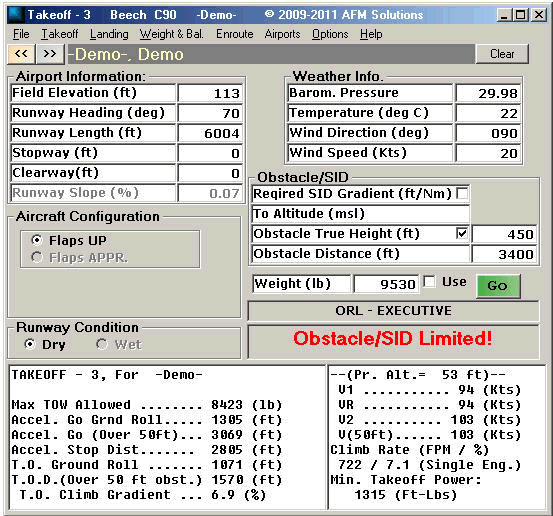
The program calculates the essential takeoff values for Flaps 0%.
The charts and tables in the Aircraft Flight Manual do not provide any information or corrections for runway slope or the use of anti-ice systems.
Obtained results if Flaps 0% is selected:
Maximum Allowed Takeoff Weight. The program looks for structural limits, climb limits
field length limits, obstacle limits (if selected), and required SID gradient limits (if selected).
Maximum Takeoff Weight to Achieve Single-Engine Rate-Of-Climb At Lift-Off. This value is not displayed but
is calculated and then used along with other parameters in
order to obtain a takeoff weight limit.
Accelerate Go Distance (Ground Roll). This value is used in finding the Field Length Induced Weight Limit (One engine out).
Accelerate Go Distance (Over a 50 ft. obstacle). This value is used in finding the Obstacle Induced Weight Limit (One engine out).
Accelerate Stop Distance. This value is used in finding the Field Length Induced Weight Limit (One engine out).
The program first finds the value from the Accelerate Stop Distance chart, then adds 10% but not more than 540 ft.
All Engines Takeoff Distance (Ground Roll). This value is used in finding the Field Length Induced Weight Limit.
All Engines Takeoff Distance (Over a 50 ft. obstacle). This value is used in finding the Field Length Induced Weight Limit.
Takeoff Climb Gradient (2nd. Segment). This value is used in finding the Obstacle Induced Weight Limit (One engine out).
The values calculated are for Zero Wind conditions! The Takeoff Gradient charts and tables in the Aircraft Flight Manual do not provide any information or corrections for Headwind and Tailwind. With any tailwind present the Takeoff Climb Gradient calculated may not be adequate
for clearing obstacles or maintaining a minimum SID gradient!
The charts and tables in the Aircraft Flight Manual do not provide any information or corrections for runway slope.
Takeoff Pressure Altitude.
V Speeds: V1, VR, V2, V(50ft)
One Engine Inoperative Climb Rate (in feet/min).
One Engine Inoperative Climb Rate (in %).
Minimum Takeoff Power At 2200 RPM (70 Knots).
Landing:
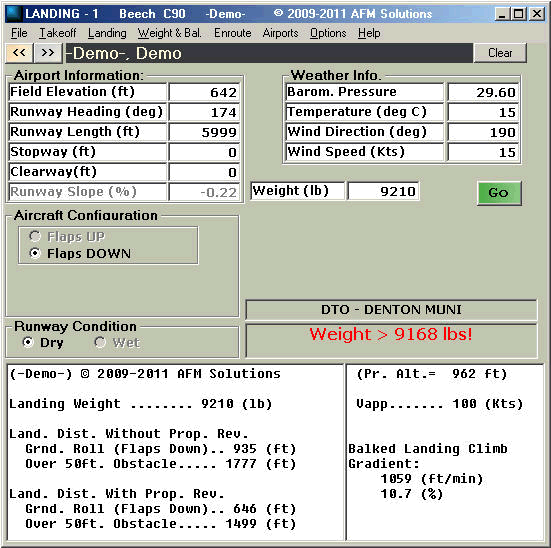
The program calculates the essential landing values for Flaps 100%.
The charts and tables in the Aircraft Flight Manual do not provide any information or corrections for runway slope.
Obtained results for Flaps 100%:
If Maximum Landing Weight is exceeded a warning message is displayed.
Landing Ground Roll (with no Prop. Reversers)
Landing Distance Over a 50ft Obstacle (with no Prop.
Reversers)
Landing Ground Roll (With Prop. Reversers)
Landing Distance Over a 50ft Obstacle (With Prop.
Reversers)
Landing Field Pressure Altitude.
Vapproach
Balked Landing Climb Rate (in feet/min and in %).
Enroute:
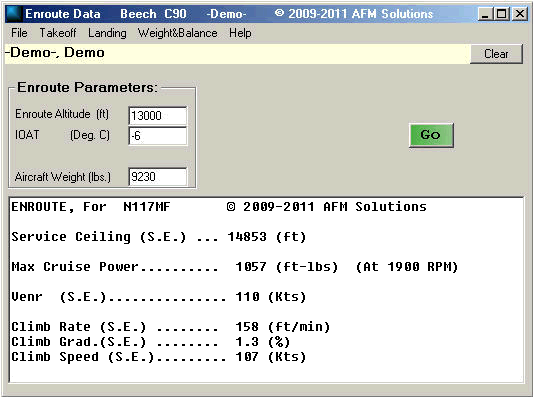
The program calculates the essential Enroute values.
Singe Engine Service Ceiling. The program uses the Minimum Enroute Altitude and the Outside Air Temperature to determine this value.
Maximum Cruise Power (At 1900 RPM, Weight 9000 lb).
One Engine Inoperative Climb Rate (Flaps Up) (in feet/min).
The charts and tables in the Aircraft Flight Manual for the Enroute Climb Rate (Flaps Up) do not provide any information for altitudes greater than 16000 ft.
One Engine Inoperative Climb Speed (in Knots).
Weight and Balance:
The program calculates the C.G. values for the Takeoff, Landing and Zero Fuel configurations and their placement within the CG Envelope allowed limits.
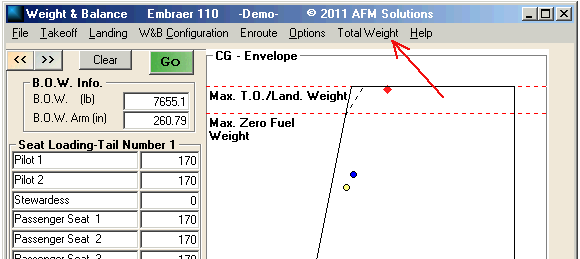
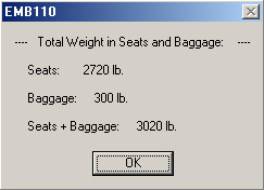
A new feature allows the user to see the total weight in the seating area, total weight in the baggage area and their sum. This information will be included in the printout of the form, but can also be viewed by clicking on the “Total Weight” menu as shown:
A message like this one will show:
New Output Save/Print Feature:
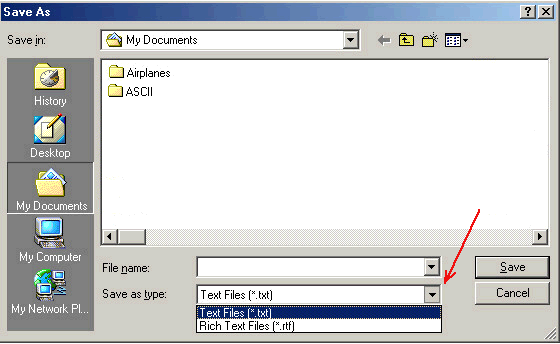
This feature allows the user to save the output to a Text file or a Rich Text file after each computation. This form allows some basic editing features such as select text, copy text and paste text. One can open a previously saved file and by cutting and pasting combine it with a new file. This feature can be very useful if the output needs to be saved for future use or forwarded by email etc.
To access this feature choose “Save Output / Print” from the “File” menu. The following form will appear:
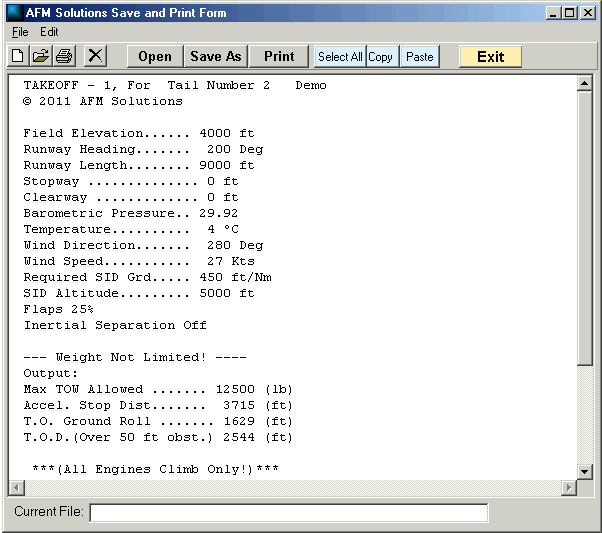
It will display the results from the latest computation session. To select the file format when saving or opening a file click on the File Type option as shown below:

Some Screen Views
Takeoff Flaps Up
Landing Flaps 100%
Enroute